Pages

What Would You Do? Girlfriends Fake Pregnancy Test

Time for some social reaction post:

One of my all time favorite TV show is ABC's "What would you do?". The TV Show is all about social experiment. They're trying to put an ordinary people into a situation where it would test their real attitude, and stand about things.

In this episode, A girlfriend is desperate to be married to his boyfriend and she sorted out buying a fake positive pregnancy test. This was witnessed by people in a restaurant, let's see what would they do, and what would you do? comment below... thanks


My Collection of VIP MAC Addresses for Globe Wimax

I've been collecting 2-3 mac addresses, and VIP mac for 3 years now. I can't even remember what works and what not in my notes. I have a stable 8-10mbps mac address which I reserve for myself, so I decided to share the other vip mac I have collected since it's Christmas anyways... consider this as my present to all of you my beloved readers.

Try it at your own risk but rest assured I don't post mac address that may damage your modem because I won't gain anything from doing that, and it would just ruin my blogs reputation.

My personal advise is just be patient with finding mac since there are VIP mac addresses that may work on a different location and may not work to your current location.

Ready, set, go!

VIP mac addresses 8-10 mbps

Globe Wimax VIP mac address 2 - 5 mbps

    00:21:07:00:F5:B2
    00:21:07:00:F6:16
    00:21:07:00:F6:7A
    00:21:07:00:F6:DE
    00:21:07:00:F7:42
    00:21:07:00:F7:A6
    00:21:07:00:F8:0A
    00:21:07:00:F8:6E
    00:21:07:00:F8:D2
    00:21:07:00:F9:36
    00:21:07:00:F9:9A
    00:21:07:00:F9:FE
    00:21:07:00:FA:62
    00:21:07:00:FA:C6
    00:21:07:00:FB:2A
    00:21:07:00:FB:8E
    00:21:07:00:FB:F2
    00:21:07:00:FC:56
    00:21:07:00:FC:BA
    00:21:07:00:FD:1E
    00:21:07:00:FD:82
    00:21:07:00:FD:E6
    00:21:07:00:FE:4A
    00:21:07:00:FE:AE
    00:21:07:00:FF:12
    00:21:07:00:FF:76
    00:21:07:00:FF:DA

Globe Wimax VIP mac address 2 - 5 mbps

2-3 mbps mac for all! 

64:16:F0:C5:59:80|6416F0-500807778004028980
20:2B:C1:E0:AB:9D|202BC1-5636
04:C0:6F:02:E7:40|04C06F-500810118103026005
5C:4C:A9:C0:E8:0A|5C4CA9-2525
10:C6:1F:AB:27:AA|10C61F-32104
20:2B:C1:AA:9F:55|202BC1-8854
10:C6:1F:AB:2A:92|10C61F-500807778007010763
64:16:F0:B0:FF:B6|6416F0-500807778003006954
64:16:F0:C5:E7:FA|6416F0-500807778912000377
78:1D:BA:1C:4C:EE|781DBA-50080777800ILA4891
64:16:F0:00:58:EC|6416F0-21500807778W9B012199
00:25:68:AC:A1:FB|002568-21500807778W99016837
5C:4C:A9:C0:BB:82|5C4CA9-500807778912005605
00:25:68:9C:03:E0|002568-21500807778W97027226
64:16:F0:00:5B:B6|6416F0-500807778912010565
64:16:F0:00:55:C6|6416F0-500807778007006890
40:4D:8E:AA:49:EB|404D8E-21500806958W96004383
20:2B:C1:E0:A6:4F|202BC1-500807778003001585
64:16:F0:00:91:92|6416F0-500807778912003730
20:2B:C1:AA:D0:A3|202BC1-500807778912004008
78:1D:BA:1C:3E:02|781DBA-500807778007012539
64:16:F0:7F:9B:B4|6416F0-500807778007014214
00:25:68:9C:46:9E|002568-21500807778W97035769
64:16:F0:7F:CB:EC|6416F0-500807778001031331
20:2B:C1:AA:A4:33|202BC1-2525
64:16:F0:C5:83:B4|6416F0-500807778004038468
64:16:F0:C5:01:40|6416F0-21500807778W9A011527
00:25:68:AC:7F:33|002568-21500807778W99012385
20:2B:C1:AA:AD:61|202BC1-500810118105022930
64:16:F0:00:D7:04|6416F0-500807778912011923
64:16:F0:7F:74:A2|6416F0-21500807778W99020948
64:16:F0:C5:30:AE|6416F0-500807778004023755
00:25:68:36:D4:CD|002568-21500806958W96012329
00:25:68:AB:D6:4B|002568-21500807778W99009679
78:1D:BA:1C:60:6A|781DBA-21500807778W9B011638
00:25:68:AC:FA:1B|002568-21500807778W99008017
20:2B:C1:AA:E8:5D|202BC1-2525

Merry Christmas and Have a safe and Happy New Year to All of us!

Tags: Globe VIP MAC, OD Mac, Latest GLobe MAC, WIMAX mac address, Globe mac, Wimax, Free Internet, Globe Free Internet, Free mac address

Stop Sharing Negative News

news23

Unlike in the 90s, information nowadays can easily be access online. Even Government announcements like if there's a typhoon or earthquake, people all over the world will know it real time. This is one of the many benefits social media sites brings. However, its also becoming a source of defamation, and wrong information.

Based on my observation, bad news gets many shares than good news. People seemed to be interested in sharing negative news, especially about Government, to their friends rather than positive and inspiring ones.

This trends were seened by the black hat SEO's as an opportunity to get visits on their websites, and Likes to their Facebook pages.

As a concerned netizen, I am calling you all out my fellow netizen to stop sharing negative links or posts which would only discourage our fellow Filipino's. Instead, share positive posts and encouraging links. We have the power to influence lives of others by the simple posts we share so use it wisely and stop sharing negative thoughts to people.

Don't get me wrong. I want change from the rotten political system in our country too! I'm not saying that we totally stop sharing negative posts about our Government. What I'm suggesting is that, stop sharing negative posts that are baseless and with personal motives. Before you share, make sure you read and check the credibility of the article or else you will look stupid by people who knows the truth.

How To Compress Video's Without Losing it's Quality‏

Compress your Video File without Losing quality

This tutorial would be very helpful if you're saving memory space in a USB drive for movies or external hard drives. I also use it to compress my videos before uploading to YouTube. The lighter the size of the video, the faster it is to be uploaded in Facebook or YouTube...

Here are the steps:

1. Download and install the software Handbrake here

2. Launch the program.

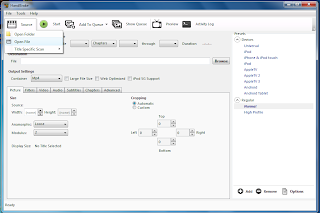
Handbrake Source > Video File

3. On the program interface, click on Source > Video File.

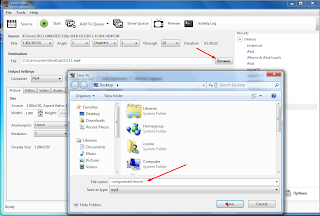
Handbrake Source > destination

4. Select the video you want to compress, then click OK.

5. Click browse and select the file destination you want the compress video to be saved.

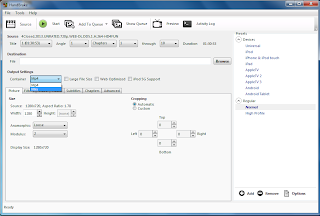
Output settings (Presset:Normal) select Container: MKV File.

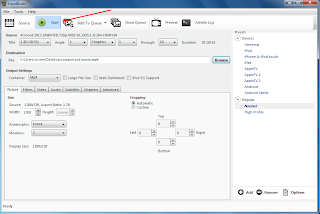
Click Start and wait for the compression to be finish. That's it!

6. On the Output settings (Presset:Normal) select Container: MKV File.

7. Now, Click Start and wait for the compression to be finish. That's it!

I have tried and tested it several times and I didn't notice any changes on the video quality. Try it yourself, and don't forget to say thank you on the comment box... :)


Tags: Compress your Video File compress your video for youtube compress your video online how to compress a video file on your phone compress your video without losing quality

Added Security Features for Microsoft Accounts

Added Security Features for Microsoft Accounts


First of all, what is Microsoft account? Microsoft account can be @hotmail.com, @outlook.com, @msn.com, and @live.com. It allows you to make transactions on Microsoft products as well as Windows 8 and 8.1 purchases in the App store. You also have the option to enroll any types of e-mail into a Microsoft account, like yahoo or google.

View Recent Activity


Just recently, Microsoft has rolled out new security feature for Microsoft accounts where it allows you to view your account activities and sign-ins.
This feature will allow you to monitor your account if someone is trying to access without your permission. It will also show you the location of the access attempts.

View Recent Activity for your Microsoft Account


Added Recovery Codes


The ability  to create a secure recovery code has been added. This can be use to regain access to your account even if you forget the other security information.
A receovery code is like a spare key to your house, however you can only request one recovery code at a time. Requesting a new code cancels the old one.

Adding Recovery Code For Microsoft Account

More control of Security Notifications


You have more control where you want to send the security notifications.

Select Security notification for Microsoft Account

How to Disable Automatic Scan and Fix for removable drives in Windows

Disable Automatic Scan and Fix for removable drives in Windows

Usually this message will appear when you insert flashdrive or external drive to your computer.

You will get this message when Windows detects error in the filesystem of the drive, or not properly mounted.

To get this fix, make sure you always use the safely remove options of the drive before you unplug it from the computer. However, if this will continue to happen, you can manually disable this services on your computer so it won't prompt you again with this "automatic scan or fix files" message.

To disable this service, you have to be using the administrator account of your computer. Now, follow these steps;

1.  Press the "Windows key" + "R" to open the run box.
2. Type "msconfig" to open the windows configuration.
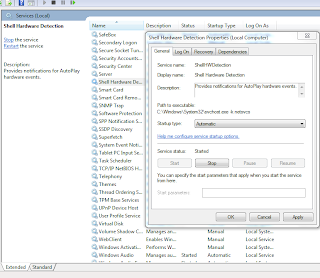
3. Go to the "Services" tab and look for "Shell Hardware Detection". Uncheck it, then click "apply" and "OK". Do not restart the computer yet if it'll prompt you to restart now. Just leave it open.
4. Now go back to the "Run" box and type "services.msc".

Shell Hardware Detection in services.msc

5. Look for "Shell Hardware Detection" and disable it by right clicking on it, and select properties. If the service status is Started, stop it and click apply and ok...
6. Go back to the Window where it ask you to restart the computer, or you can manually restart the computer now.

Once the computer is ready, the automatic scan and fix prompt will stop bothering you now.

Windows 8.1 Update Does Not Appear on the App Store

Update to Windows 8.1 Common issues and fix


There are some computers that are having issues finding the Windows 8.1 update from Windows 8 or Windows 8 pro. If you're having this issue, follow the troubleshooting below;

1. Install KB2871389 if it's not yet installed.

2. Make sure that you're using a retail copy of Windows 8 and not Volume License, Enterprise Edition, or Preview version of Windows 8/8.1.

3. Run WSRESET.exe from the command prompt.
             1. Press the "windows key" to get to the startscreen and start typing "cmd"
             2. Right click on it and select "run as administrator".
             3. On the command prompt type "wsreset.exe"

4. Make sure that the App License is sync to your account
            1. On the start screen, tap/click on the Store App
            2. Point and swipe your mouse from the right edge of the screen and click "settings", or simply press "windows key" + "c".
            3. Click "App updates"
            4. Click "Sync licenses.

5. Verify if the following services are running; BITS, Windows update, and Cryptographic Services.
           1. Press "windows key" + "R" to open the run box.
            2. Type "Services.msc" to open the system services configuration.
            3. Look for the services and right click on it and click properties. If the status is not set to automatic and started, set it to automatic and start the services.
           
6. Open Internet Explorer, and type the following command in the address bar; ms-windows-store:windowsupgrade


That's it! If you're still having the same issue or if you're getting an error code? Please post it on the comment box, I'll get back to it as soon as I can. Thanks for dropping by.

Ice Dragon Browser Installation

Ice dragon browser is the 64-bit version 


Ice dragon browser is the 64-bit version of Comodo dragon browser. It's fast and stable, so it's perfect if you're fan of opening multiple sites at the same time.
Unlike the Dragon browser that looks similar to google chrome, IceDragon is more like firefox.

Here's the step on how to install IceDragon so you can optimize your browsing experience.

First, download the isntall from http://www.comodo.com/home/browsers-toolbars/icedragon-browser.php

Once you have the installer, follow these steps;

1. Select the file location where you want to save the file components.

Select the file location where you want to save the file components.

2. If you don't want to import any information from you other browsers, then you can uncheck the boxes for History, Favorites, Cookies, and Passwords. You can also uncheck the option to make IceDragon your default browser.

COMODO IceDragon step 2

3. If you want to take advantage of the secure DNS sever for the IceDragon, then you can select the option where it says "I would like to use COMODO SecureDNS Server". In my case, I'm already using a secured DNS set in my adapters so no need to check this. Proceed with the installation.

I would like to use COMODO SecureDNS Server.

4. After the installation, the IceDragon browser would look like the screenshot below. Clean, smooth, and wide.

After the installation, the IceDragon browser


That's it... Enjoy!