Pages

Unable to open docs for MS Office Word 2013 and Office 2010

If you’re having issue with opening Microsoft Office 2013 application, it’s probably caused by add-ons installed and or the document is set to protected mode.

This tutorial will teach you how to troubleshoot issues with Microsoft Office that are unable to launch or open any documents.
1. The first thing you need to do is open any Microsoft application in the computer (Excel,Word, Powerpoint 2013, etc.)
2. Second, on the application that’s opened, let’s say Microsoft Word 2013. On the upper right corner of the window, click on File, then scroll down to Options.
3. The window for Options will pop up; Select “Trust Center” and click “Trust center settings.”
4. Now, look for the “Protected view.”
5. You have to clear all the boxes under protected view. Uncheck all the options under “Protected View” and click OK to apply the changes.
6. You can now close the application and re-open the documents that isn’t opening earlier.
7. Try opening any file now with Microsoft Office application. That issue should be resolved now.
I hope you learned something from this simple tutorial. If you have any question or suggestion, please feel free to comment below.

General Troubleshooting for Office 2013 and Office 365 Installation

This is the general troubleshooting steps for Office 2013, or Office 365. That's usually caused a third party application having conflict with the installation files. Sometimes it will stop or hangs on 87% etc...


Here is the general troubleshooting steps on how to sort it out. I tried this several times with great success. 

Steps:
1.       Perform computer clean boot (disable Non MS Services/Startup) = Visit this Clean Boot Link for the steps.

2.       Create and Login to a new Admin Account = Visit this Create New User Account link for the steps.

3.       Delete temp files. Press windows key + R. On the run box type the following;
                 a.       %temp%
                 b.       C:/Windows/temp
                 c.        C:/Windows/Prefetch

4.       Optimize the Internet Explorer.
                1.        Type inetcpl.cpl on run and click OK
                2.        Under General, click on delete browsing history, put a check on all boxes, and click delete
                3.        Under Security Tab, click on reset all zones to default level
                4.        Under Privacy, click on clear sites
                5.        Under Content, click on clear SSL state
                6.        Under Advanced, click on restore advanced settings, and click on reset, put a check on delete personal settings, and click reset

5.       Run the Office 365 uninstaller fixit http://support.microsoft.com/kb/2739501

6.       Delete Microsoft Office 15 in Program Files and Program Files(x86)

7.       Run IE in private mode;
                  Press control shift + P

8.       Download the 64bit and 32bit Office setup file… login to http://office.com/myaccount

9.       Run first the 64bit. An error may appear regarding integrated... Just click on OK.

10.    Run the 32bit installer.


Can't Create New Folder in Windows 7 | Solved

This issue is caused by a corrupted registry.

To resolve this, we will need to rebuild the registry settings. 


First, is open a notepad and copy the code snippet below. Start with the [HKEY_CLASSES_ROOT\FOder]


Code Snippet


Windows Registry Editor Version 5.00


[HKEY_CLASSES_ROOT\Folder]
@="Folder"
"EditFlags"=hex:d2,03,00,00
"FullDetails"="prop:System.PropGroup.Description;System.ItemNameDisplay;System.ItemType;System.Size"
"ThumbnailCutoff"=dword:00000000
"TileInfo"="prop:System.Title;System.PropGroup.Description;System.ItemType"

[HKEY_CLASSES_ROOT\Folder\DefaultIcon]
@=hex(2):25,00,53,00,79,00,73,00,74,00,65,00,6d,00,52,00,6f,00,6f,00,74,00,25,\
00,5c,00,53,00,79,00,73,00,74,00,65,00,6d,00,33,00,32,00,5c,00,73,00,68,00,\
65,00,6c,00,6c,00,33,00,32,00,2e,00,64,00,6c,00,6c,00,2c,00,33,00,00,00

[HKEY_CLASSES_ROOT\Folder\shell]

[HKEY_CLASSES_ROOT\Folder\shell\explore]
"MultiSelectModel"="Document"
"BrowserFlags"=dword:00000022
"ExplorerFlags"=dword:00000021

[HKEY_CLASSES_ROOT\Folder\shell\explore\command]
@=hex(2):25,00,53,00,79,00,73,00,74,00,65,00,6d,00,52,00,6f,00,6f,00,74,00,25,\
00,5c,00,45,00,78,00,70,00,6c,00,6f,00,72,00,65,00,72,00,2e,00,65,00,78,00,\
65,00,20,00,2f,00,73,00,65,00,70,00,61,00,72,00,61,00,74,00,65,00,2c,00,2f,\
00,65,00,2c,00,2f,00,69,00,64,00,6c,00,69,00,73,00,74,00,2c,00,25,00,49,00,\
2c,00,25,00,4c,00,00,00
"DelegateExecute"="{11dbb47c-a525-400b-9e80-a54615a090c0}"

[HKEY_CLASSES_ROOT\Folder\shell\open]
"MultiSelectModel"="Document"
"BrowserFlags"=dword:00000010
"ExplorerFlags"=dword:00000012

[HKEY_CLASSES_ROOT\Folder\shell\open\command]
@=hex(2):25,00,53,00,79,00,73,00,74,00,65,00,6d,00,52,00,6f,00,6f,00,74,00,25,\
00,5c,00,45,00,78,00,70,00,6c,00,6f,00,72,00,65,00,72,00,2e,00,65,00,78,00,\
65,00,20,00,2f,00,73,00,65,00,70,00,61,00,72,00,61,00,74,00,65,00,2c,00,2f,\
00,69,00,64,00,6c,00,69,00,73,00,74,00,2c,00,25,00,49,00,2c,00,25,00,4c,00,\
00,00
"DelegateExecute"="{11dbb47c-a525-400b-9e80-a54615a090c0}"

[HKEY_CLASSES_ROOT\Folder\shellex]

[HKEY_CLASSES_ROOT\Folder\shellex\ContextMenuHandlers]

[HKEY_CLASSES_ROOT\Folder\shellex\ContextMenuHandlers\BriefcaseMenu]
@="{85BBD920-42A0-1069-A2E4-08002B30309D}"

[HKEY_CLASSES_ROOT\Folder\shellex\ContextMenuHandlers\Offline Files]
@="{474C98EE-CF3D-41f5-80E3-4AAB0AB04301}"

[HKEY_CLASSES_ROOT\Folder\shellex\DragDropHandlers]

[HKEY_CLASSES_ROOT\Folder\shellex\DragDropHandlers\{BD472F60-27FA-11cf-B8B4-444553540000}]
@=""

[HKEY_CLASSES_ROOT\Folder\shellex\PropertySheetHandlers]

[HKEY_CLASSES_ROOT\Folder\shellex\PropertySheetHandlers\BriefcasePage]
@="{85BBD920-42A0-1069-A2E4-08002B30309D}"

[HKEY_CLASSES_ROOT\Folder\shellex\PropertySheetHandlers\Offline Files]
@="{7EFA68C6-086B-43e1-A2D2-55A113531240}"

[HKEY_CLASSES_ROOT\Folder\ShellNew]
"Directory"=""
"IconPath"=hex(2):25,00,53,00,79,00,73,00,74,00,65,00,6d,00,52,00,6f,00,6f,00,\
74,00,25,00,5c,00,73,00,79,00,73,00,74,00,65,00,6d,00,33,00,32,00,5c,00,73,\
00,68,00,65,00,6c,00,6c,00,33,00,32,00,2e,00,64,00,6c,00,6c,00,2c,00,33,00,\
00,00
"ItemName"="@shell32.dll,-30396"
"MenuText"="@shell32.dll,-30317"
"NonLFNFileSpec"="@shell32.dll,-30319"

[HKEY_CLASSES_ROOT\Folder\ShellNew\Config]
"AllDrives"=""
"IsFolder"=""
"NoExtension"=""


Save it as "name.reg" > close notepad > 2xclick on the file name.reg > to the question: Do you want add the information to the windows registry? > OK > restart > must now runs OK!.

End of tech4windows.info domain

Yes, the domain for my blog will be expiring soon and I don't want to extend my subscription to Godaddy yet. If you're a regular visitor of my blog, the new domain would be http://tech4windows.blogspot.com/.. :) Right now it's not yet live. But as soon as the domain expired, then look for that link.

Let's see if you know how to make this work! :)


E8:08:8B:CC:5E:84 sPiodDwAxlhM_A5f (156 KB/s)

E8:08:8B:CC:5E:8C ztlnXUpJSZtypL0t (273 KB/s)
E8:08:8B:CC:5E:90 X8b2xBoiuWmtC0mc (252 KB/s)
E8:08:8B:CC:E0:24 bEyH35IfpUej08CA (275 KB/s)
F4:DC:F9:F3:5C:3C QljZxuUGP_9ELLsH (113 KB/s)
F4:DC:F9:F3:5C:4C 8kBZGjBq0m5V4uet --UNSTABLE--
F4:DC:F9:F3:5C:50 uudJ_yX-R8w73zDP --UNSTABLE--
F4:DC:F9:F3:5C:54 L-w1JxcMfClnzukn --UNSTABLE--

Have a great day everyone!


Free Globe F4 series Mac Address, E8 series Mac address for Globe Wimax, Globe Wimax Mac Address, Mac Address for Globe wimax, latest globe wimax mac address, od mac for globe 2015, stable globe mac address, fastest globe mac address

Cheapest Computer Repair Services in Cebu

Last year we launched the Online Windows Tech group that provide home service computer repair in Cebu. We have helped several customers both locals and foreigners in Cebu. Most of the offices we visit are still looking up for us to continue maintaining their computers, but we didn't have time to continue due to conflict schedules with the rest of the team members. 

Now, we decided to relaunch the most comprehensive, and cheapest computer repair services in Cebu. We call it On-site Computer Repair Cebu. We have learned a lot of things in the past regarding how to run this business, and we made it even better to satisfy our customers needs. We now partnered with known hardware repair technicians so if our customers will have problem with the hardware, we won't be leaving them on a dead end.

On-site Computer Repair Cebu now offers Data recovery for your lost files in your USB drive, MicroSD, etc... Which was not included in our service in Online Windows Tech before. We also now provide full version of Microsoft Windows Operating system with just a small amount add-on for Computer Format/Clean installation. We now provide network setup for Internet Cafe's, home and small office networking, file and printer sharing, and print server configuration.

Our minimum charge is P 300.00 pesos only. This price is Fixed. Most of the time, what we learned from Online Windows Tech is that, customers describe the problem differently from the actual problem. Since we don't do regular charge before, when we found out that the problem is hardware, we just end up referring them to a local hardware computer repair shop. We go home empty handed, and not even have the amount to pay our gas.

Here are the complete price list:

1. Operating System Re-installation/ Computer Reformat / Operating System Repair

      A. If you have the Product key and Windows OS installer - P 500.00
      B. If you DON'T have the Product key and Windows OS installer - P 1,000.00

2. PC troubleshooting, PC Tune Up, & PC Security (Virus Removal) – P500.00

3. Microsoft Office Product Installation and Anti-Virus Software – P500.00

4. Router (Wifi) Configuration and Security - P 500.00

5. Printer configuration/setup, Network Printer - P 500.00

6. Hardware issues – Price to be determined based on affected hardware part. (service may take more than 1-2 weeks of fix depending on severity of issue)


We guarantee a 100% resolution or it's free! We also provide 2 weeks service warranty. if the issue recur within 2 weeks, we will fix it for FREE!

For more information, you may contact us directly in https://www.facebook.com/CebuComputerRepair

Pronouncing 10 Tech Terms Correctly

These are some of the most common tech terms we hear everyday. Be sure to pronounce them correctly.

pronunciation tech terms correctly

1. GIF - Pronounced "jif"
   Acronym for "Graphic Interchange Format"
 - Animated images, something visually attactive. Invented by Steve Wilhite

2. Nokia - Pronounced "Knock-ya"
   Nokia was recently purchased by Microsoft and you'll want to know how to pronounce your next phone correctly.

3. Asus - Pronounced "Ey-sus"
   A Taiwanese company makers of computer, tablet, and smartphone. Be sure to pronounce it correctly to avoid "ACE-us" blooper.

4. OS X - Prounced "oh-ess-ten"
   This is apple's 10th operating system software for Macintosh. Apple chose to use Roman numeral for 10, which is X. Remember, that's 10 and not an actual X as some people pronounced as "oh-ess-X".

5. Cache - Pronounced "cash" like the money
   Term used for storing digital information in the storage. Usually you'll hear this word in referrence to Internet browsing.

6. Meme - Pronounced "meem", not "mem" or "me-me"
    A humorous image, video, piece of text, etc. that is copied (often with slight variations) and spread rapidly by Internet users.

7. Pwn - Pronounced "pone" (verb [slang])
    Term usually used by gamers. Meaning to conquer to gain ownership.

8. Imgur - Pronounced "imager" (image hosting service)
   This site usually hosts memes, and GIFs.

9. DATA - Pronounced "DAY-tuh" or "Dah-Tah"
    The quantities, characters, or symbols on which operations are performed by a computer, being stored and transmitted in the form of electrical signals and recorded on magnetic, optical, or mechanical recording media.

Resources: Google dictionary Yahoo.com.ph

Program Won't Uninstall in Windows 7


Just finished working on an installation and uninstallation issue. The problem was regarding the Windows live mail on a virus infected computer.


We can't send and received e-mail because everytime we try to refresh the send and received it gives error message regarding the server configuration.

So we performed all the basic troubleshooting from uninstalling the Windows Essentials, reinstalling, updating, uninstalling again, and re-installing...none of the troubleshootings worked. I even consulted one of the senior tech's but looking at the notes of troubleshooting I did, they suggested to repair install the operating system.


I don't want to do that because it would be a hassle in the customer's end. So what I did is used this fixit tool from Microsoft.


Microsoft Fixit tool for Uninstallation and installation problem

This http://support.microsoft.com/mats/program_install_and_uninstall/en tool will automatically repair issues that block programs from installation or removal due to corrupted registry keys.


I'm not really a fan of Microsoft fixit tool because they rarely work, but for this specific tool. I give it a thumbs up... 

This tool is useful for uninstalling program that doesn't show up on the programs and features in the control panel, or from the root folder of the application itself.


Speed Up You Android Phone Times Faster

I have been reading news about the latest OS for Iphone which is iOS 7.1, and I was pretty impressed with the reviews. One of the thing that caught my attention is the dramatic increase of speed. As a tech, all that matters to me is the speed and how productive I can be with a specific OS either it's Android, Windows Phone, or Apple.

So I was curious how come it's a lot faster compaired to the previous iOS? Then I learned that simply because they cut the transition time of an app to make users experience the speed up of openning an app. Nice marketing startegy eh?

Android is more robust than iOS, and did you know that you can also increase the speed of your Android by cutting the transition speed like what iOS 7.1 did? Yes, although it's a bit tricky, but it doesn't require a super user to do that. All you need is the resources I provided below.

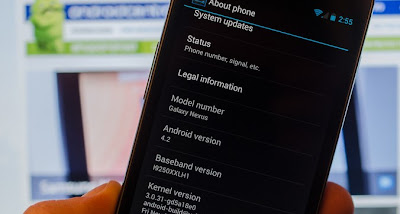
speeding up Android 4.2 phone

Follow the instructions on how-to speed up your Android 4.2 phone.

1. Go to settings menu, and tap on "About phone".

2. Scroll down to the buttom and look for "Build number."

3. Tap it seven (7) times. Keep on tapping until you'll see the developer settings.

According to source, Android has hidden this option in Android 4.2 because ordinary users don't need this settings.

4. Look for;
                      Window animation scale
                      Transition animation scale
                      Animator animation scale
                      Change thier value to .5x

That's it! You should notice a dramatic increase of speed in your Android phone now.

What this does is it will make the app transition faster.

For more updates, tips and tricks, tech news, and more...Like our Facebook page!